
Stream overlay
Your flight, on your stream.
A free stream overlay for MSFS, X-Plane 12, P3D and FSX. Live flight data, countdowns and your landing rate, in OBS, Streamlabs or TikTok Live Studio. It comes with OnTime Kitbag and costs nothing.
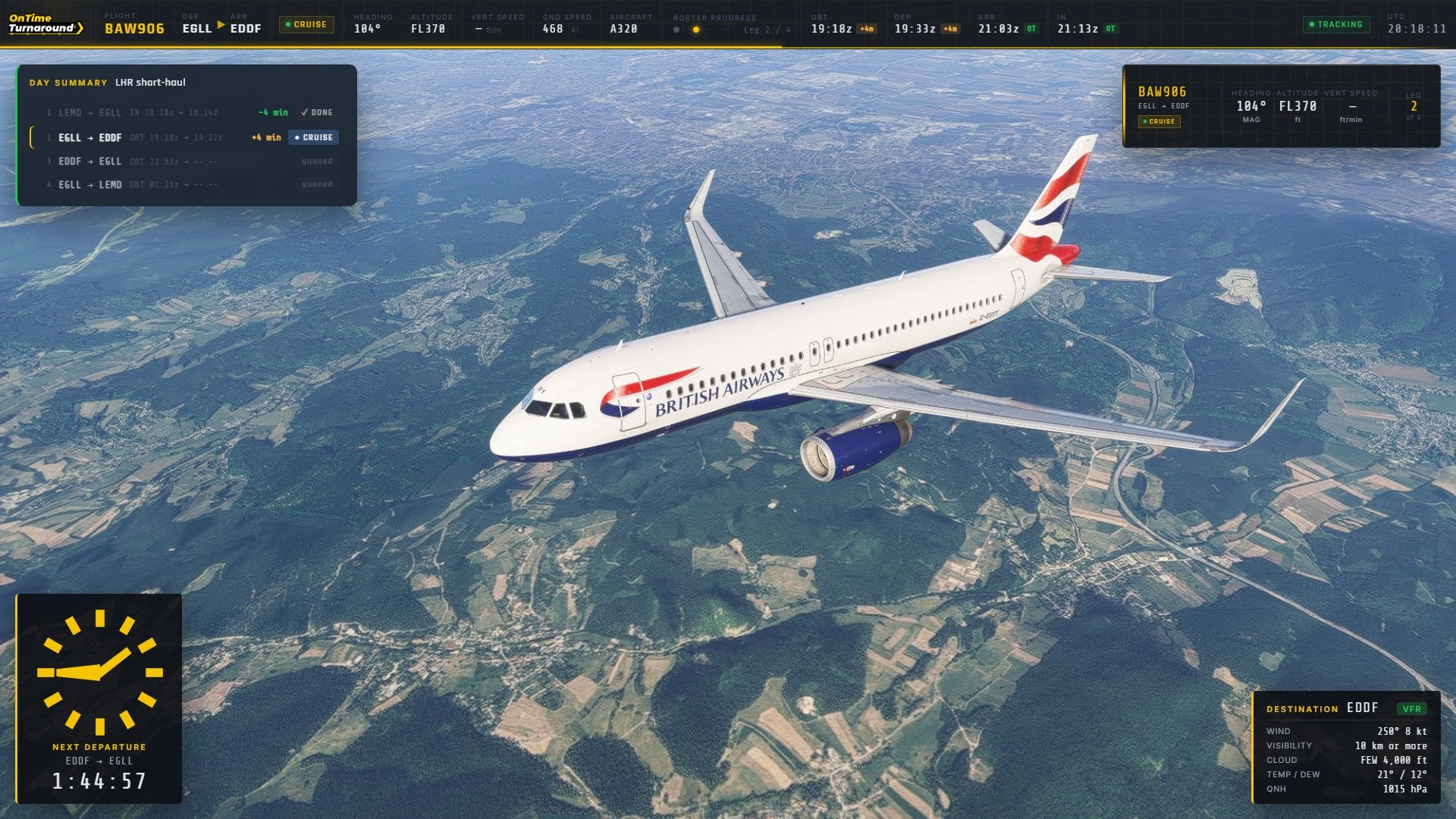
What goes on screen.
Seven widgets. Turn on the ones you want, leave the rest off, and put each one where it suits your layout.
HUD
A rotating card for the flight you are on: route, phase, times, delays and your logo. It cycles through its pages, then hides itself for a while so it never turns into wallpaper.
Pill
One line and one number, counting down to your next event. The smallest thing you can put on screen and still tell people something.
Strip
A full width bar across the top or the bottom of the canvas, the way a broadcast lower third sits.
Day summary
Every leg of the day in one list. With OnTime Turnaround it shows scheduled against actual, so viewers can see exactly where the day went wrong.
Landing rate
Your touchdown in feet per minute and G, on screen for a few seconds after you land. The number chat asks for every single time.
Destination weather
The METAR where you are going, brought up once you reach the cruise.
Big countdownOnTime Turnaround
An analogue clock winding down to your next scheduled departure, for when the turnaround is the story.
Two ways to get it on air.
OBS and Streamlabs
OnTime Kitbag serves the overlay from your own PC. Add a browser source, paste the local address, and size it to your canvas. Nothing leaves your machine.
TikTok Live Studio and the rest
Switch on the hosted overlay and you get a link that works in any browser source with no local server. Rotate it whenever you like and the old link stops working.
Make it yours.
- Position
- Every widget sits in the corner you choose, and the strip runs along the top or the bottom.
- Background opacity
- Set per widget, anywhere from fully clear to solid, so the overlay sits over your scene rather than on top of it.
- Scale
- Size the whole overlay between half and double, so it still reads at 1080p or on a vertical canvas.
- Colours
- Set the accent and background to match your channel. Part of OnTime Turnaround.
- Scenes
- Save more than one layout and point a separate browser source at each, so your starting scene and your flying scene can differ.
- HUD timing
- Choose how long each page holds, how many times it rotates, and how long it stays out of the way in between.
What it costs.
The overlay is part of the free app. OnTime Turnaround adds the pieces that only make sense once you are flying a schedule.
Free
In OnTime Kitbag, free
- HUD, pill and strip
- Day summary of the legs you fly
- Landing rate after every touchdown
- Destination weather in the cruise
- Position, opacity, scale and HUD timing
- Multiple saved scenes
- Local browser source for OBS and Streamlabs
- Hosted link for TikTok Live Studio
Paid addon
OnTime Turnaround
- The big countdown clock
- Your own accent and background colours
- Scheduled against actual times on the day summary
Setting it up.
Four steps, and none of them involve editing a config file.
- 1Install OnTime KitbagFree, Windows, and the app the overlay runs from. It reads your flight from the simulator on its own.
- 2Pick your widgetsOpen Settings, then Overlay. Turn on what you want, drop each one where you want it, and watch it in the preview.
- 3Copy the linkA local address for OBS and Streamlabs, or a hosted link for everything that cannot reach your PC.
- 4Add a browser sourcePaste the link into your streaming software, size it to the canvas, and fly. The overlay fills itself in from there.
Works with
- MSFS 2024
- SimConnect, built in
- MSFS 2020
- SimConnect, built in
- X-Plane 12
- OnTime plugin, installed for you
- Prepar3D
- FSUIPC
One licence covers every one of them. Kitbag reads from the simulator and installs nothing into its folders, apart from the X-Plane plugin, which it puts in place for you from Settings.